PIXART α First Open Source Rival to Midjourney Better Than Stable Diffusion SDXL Full Tutorial
PIXART-α : First Open Source Rival to Midjourney - Better Than Stable Diffusion SDXL - Full Tutorial
Full tutorial link > https://www.youtube.com/watch?v=ZiUXf_idIR4
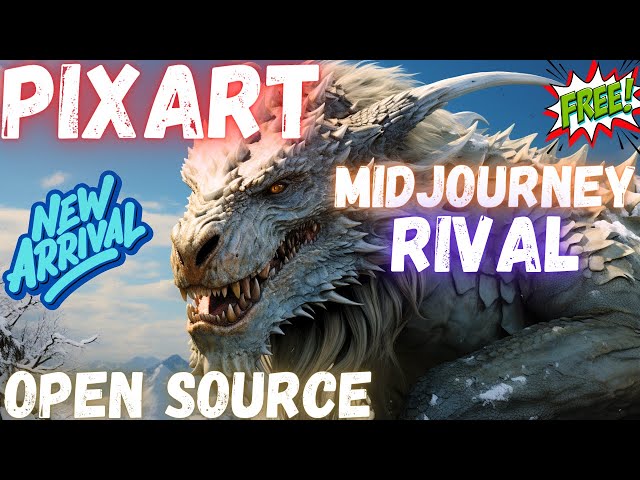











Introduction to the new PixArt-α (PixArt Alpha) text to image model which is for real better than Stable Diffusion models even from SDXL. PixArt-α is close to the Midjourney level meanwhile being open source and supporting full fine tuning and DreamBooth training. In this tutorial I show how to install and use PixArt-α both locally and on a cloud service RunPod with automatic installers and step by step guidance.
The link to download resources
https://www.patreon.com/posts/pixart-alpha-for-93614549
Stable Diffusion GitHub repository
https://github.com/FurkanGozukara/Stable-Diffusion
SECourses Discord To Get Full Support
https://discord.com/servers/software-engineering-courses-secourses-772774097734074388
PixArt Repo
https://github.com/PixArt-alpha/PixArt-alpha
#PixArt #StableDiffusion #SDXL
00:00:00 Introduction to PixArt-α: Fast Training of Diffusion Transformer for Photorealistic Text-to-Image Synthesis and the tutorial content
00:02:38 What are the requirements to follow this tutorial and install PixArt Alpha
00:03:05 How to install PixArt Alpha on your machine and start using it
00:03:59 Where Hugging Face models are downloaded by default and how to change this default cache folder
00:05:44 How to return back to using default Hugging Face cache folder
00:06:08 How to fix corrupted files error during installation
00:06:29 How to start PixArt Web APP after installation has been completed
00:07:24 How to use PixArt Web APP and its features
00:07:59 Comparing a dragon prompt with SDXL base version
00:08:14 How to use provided styles csv file
00:08:40 How to start Automatic1111 SD Web UI on your second GPU
00:08:50 Where the PixArt Web APP generated images are saved
00:09:30 How to set parameters in your Automatic1111 SD Web UI to generate high quality images
00:09:49 PixArt generated image vs SDXL generated image for same simple prompt
00:10:15 Anime style same prompt comparison
00:10:55 One another strong aspect of the PixArt Alpha model
00:11:29 Fantasy art style comparison of SDXL vs PixArt-α
00:11:52 3D style comparison of SDXL vs PixArt-α
00:12:16 Manga style image generation comparison between SDXL vs PixArt-α
00:12:44 Comparing PixArt vs SDXL vs Midjourney with same prompt
00:13:41 How to use LLaVA for captioning and obtaining prompt ideas and generating more amazing images
00:16:12 Comparison of PixArt vs SDXL prompt following in details
00:17:29 Getting prompt idea from ChatGPT and comparing SDXL and PixArt prompt following
00:19:46 PixArt owns hard the SDXL with this new detailed prompt
00:22:00 How to install PixArt on a RunPod pod / machine
00:23:54 How to set default Hugging Face cache folder on RunPod / Linux machines
00:25:05 How to understand RunPod machine / pod is not working correctly and fix it
00:26:00 How to properly delete files / folders on RunPod machines / pods
00:26:51 How to connect and use PixArt web UI on a RunPod machine after it was started
00:28:20 How to download all of the generated images on RunPod with runpodctl very fast
The paper introduces PIXART-α, a Transformer-based text-to-image (T2I) diffusion model designed to significantly lower training costs while maintaining high image generation quality, competitive with leading models like Imagen and Midjourney. It achieves high-resolution synthesis up to 1024x1024 pixels at reduced training costs.
Key Innovations:
Training Strategy Decomposition: The process is divided into three steps focusing on pixel dependency, text-image alignment, and image aesthetic quality. This approach reduces learning costs by starting with a low-cost class-condition model and then pretraining and fine-tuning on data rich in information density and aesthetic quality.
Efficient T2I Transformer: Built on the Diffusion Transformer (DiT) framework, it includes cross-attention modules for text conditions and streamlines computation. A reparameterization technique enables loading parameters from class-condition models, leveraging prior knowledge from ImageNet, thus accelerating training.
High-informative Data: To overcome deficiencies in existing text-image datasets, the paper introduces an auto-labeling pipeline using a vision-language model (LLaVA) to generate captions on the SAM dataset. This dataset is selected for its diverse collection of objects, aiding in creating high-information-density text-image pairs for efficient alignment learning.
Image Quality: The model excels in image quality, artistry, and semantic control, surpassing existing models in user studies and benchmarks.
Broader Implications: The paper suggests that PIXART-α's approach allows individual researchers and startups to develop high-quality T2I models at lower costs, potentially democratizing access to advanced AI-generated content.
The paper concludes with the hope that PIXART-α will inspire the AIGC community and enable more entities to build their own generative models efficiently and affordably.
-
00:00:00 Greetings, everyone.
-
00:00:01 In this video, I will introduce you to a new generative AI model to generate images from
-
00:00:07 prompts: PixArt A, PixArt Alpha, and it is truly a rival for Stable Diffusion XL (SDXL).
-
00:00:15 Actually, it is better than SDXL, and I will show you that.
-
00:00:18 The power of PixArt is that it is able to follow prompts much better than Stable Diffusion
-
00:00:24 XL.
-
00:00:25 This power comes from the Text Encoder that PixArt uses.
-
00:00:30 It is using a T5 Text Encoder, which is the most powerful Text Encoder.
-
00:00:36 They also utilized LLaVA captioning during their training, which helped them significantly.
-
00:00:41 So, in this tutorial, I will show you how to install PixArt on your computer and run
-
00:00:46 it with just one-click installers that I have prepared for you.
-
00:00:51 I will compare it with Stable Diffusion XL base version.
-
00:00:54 I will compare it with Midjourney with the same prompting.
-
00:00:57 I will show you how you can change your default Hugging Face caching folder where the models
-
00:01:04 will be downloaded.
-
00:01:05 I will share these styles file that you can use on your Automatic1111 Web UI, which comes
-
00:01:11 with the PixArt Gradio.
-
00:01:13 Moreover, I will show you how to use LLaVA for captioning images.
-
00:01:19 Moreover, in this video, I will show you how to install and use PixArt on a RunPod machine
-
00:01:25 as well.
-
00:01:26 By following the same steps of RunPod installation, you can install PixArt on a Linux machine
-
00:01:32 as well.
-
00:01:33 So if you are a Linux user, then you can follow this tutorial to learn how to install and
-
00:01:39 use PixArt on a Linux machine, or if you don't have a strong GPU, then you can follow this
-
00:01:45 tutorial to install and use the PixArt on a RunPod machine.
-
00:01:50 And finally, I keep working on the interface.
-
00:01:53 After the tutorial has been completed, I made several improvements.
-
00:01:58 You see, now it is using a better space of the screen.
-
00:02:02 You can now see the entire prompt.
-
00:02:05 Now it will display the generated images like this, as a gallery.
-
00:02:09 Also, when you click this X icon, it will display the original resolution of the images.
-
00:02:16 When you click any image back, it will return to the gallery option.
-
00:02:20 Hopefully, I will keep improving the Gradio application.
-
00:02:24 So, everything we are going to need is shared in this post.
-
00:02:28 I am going to share the link of this post in the description of the video and also in
-
00:02:33 the comment section of the video.
-
00:02:36 I have prepared amazing installer files.
-
00:02:38 All you need to do is install Python and Git if you haven't yet.
-
00:02:44 I have this amazing tutorial for how to install Python and Git.
-
00:02:48 When you type Python, you should get this message: 3.10.x version.
-
00:02:54 I am preferring 11.
-
00:02:56 I haven't tested with other Python versions.
-
00:02:58 It may work, but it may not also work.
-
00:03:01 And when you type Git, you should get that this message the Git is installed.
-
00:03:06 After that, just download the PixArt installer.zip file.
-
00:03:10 When you click here or click the attachment, you will get the attachment downloaded.
-
00:03:17 Move it into wherever you want to install.
-
00:03:20 Let's make a new folder in G drive: Test PixArt.
-
00:03:25 Paste it there.
-
00:03:26 Extract it.
-
00:03:27 This is a zip file, so you can extract it on Windows automatically.
-
00:03:31 And just double-click install.bat file, and it will install everything fully automatically
-
00:03:36 for you.
-
00:03:37 If you are a Linux user, then follow the instructions for the RunPod installer.sh file.
-
00:03:44 I will also show how to install the RunPod in this tutorial, so you can look at the video
-
00:03:48 chapters and seek to that section as well.
-
00:03:52 The installer will automatically install everything for us.
-
00:03:56 Then the models will get automatically downloaded.
-
00:03:58 If you have previously used any Hugging Face models, then you will know that they are getting
-
00:04:04 downloaded into the cache folder.
-
00:04:06 The cache folder is inside C drive, inside users, inside your username, inside cache,
-
00:04:14 inside Hugging Face, inside hub.
-
00:04:17 This is where all of the model files are by default downloaded.
-
00:04:22 So let me show you the size of my cache folder in my C drive.
-
00:04:26 You see, I am using 406 gigabytes in my cache folder.
-
00:04:31 So some people were asking me how they can change the cache folder where the model files
-
00:04:38 will be automatically downloaded.
-
00:04:39 To change it, start a new cmd as administrator.
-
00:04:42 So I type cmd, right-click, and run as administrator.
-
00:04:46 Click yes.
-
00:04:47 Then execute this command according to where you want the cache folder to be.
-
00:04:53 So let me show you closely.
-
00:04:55 Let's say I want my cache folder to be Hugging Face models folder.
-
00:04:59 So I right-click and new, generate folder, and enter here.
-
00:05:04 Copy the path and paste it here.
-
00:05:06 Then I copy this, paste it into the command line interface.
-
00:05:09 Hit enter.
-
00:05:11 This will generate a key in system environment variables.
-
00:05:15 So when I open edit system environment variables, click environment variables, I will see that
-
00:05:22 HF_HOME.
-
00:05:23 This is Hugging Face home.
-
00:05:25 This is where the Hugging Face libraries will look to download the models as a cache.
-
00:05:31 So now all of the models will be downloaded into this drive.
-
00:05:35 Let's okay and okay.
-
00:05:36 This is done.
-
00:05:37 Let's see the installer status.
-
00:05:39 It is still installing.
-
00:05:40 This totally depends on your hard drive speed and your internet connection speed.
-
00:05:44 So let's say you wanted to delete this custom model and return to the default cache folder.
-
00:05:51 What you need to do: open the environment variables again, environment variables, and
-
00:05:55 just delete this variable.
-
00:05:56 When you click delete, it will delete the cache folder, and it will download into the
-
00:06:02 default cache.
-
00:06:04 I tested this, and it is working.
-
00:06:05 Okay, installer almost completed.
-
00:06:08 Let's say during the installation something happened and some of your files are corrupted.
-
00:06:13 Then you need to delete this temporary folder.
-
00:06:15 This is usually where the downloaded libraries are temporarily saved.
-
00:06:21 So if you delete this temporary folder in your case, then it should fix your installation
-
00:06:26 errors if you encounter any error.
-
00:06:29 Okay, the installation has been completed.
-
00:06:31 This is the screen.
-
00:06:32 Just hit anywhere, and it will close automatically.
-
00:06:35 Let's return back to our installation folder.
-
00:06:38 Now there are several options.
-
00:06:40 I suggest you use the 1024 pixel model.
-
00:06:43 The 512 pixel model is really bad.
-
00:06:45 So, it doesn't worth to spend your time.
-
00:06:48 There are two options: run as 8-bit and run as 16-bit.
-
00:06:52 The 8-bit version will load the Text Encoder in 8-bit instead of 16-bit.
-
00:06:57 So, it will use lesser VRAM.
-
00:07:00 However, it may have a little bit degraded quality.
-
00:07:04 I will run the 16-bit version.
-
00:07:07 I have RTX 3090 TI, so I don't need the 8-bit version.
-
00:07:13 Since I have previously downloaded the model files, it didn't re-download.
-
00:07:17 I can already see them here.
-
00:07:19 You see, this is the 1024 pixel model.
-
00:07:23 It is 20 GB.
-
00:07:24 So, this is the screen which we will use.
-
00:07:27 I have edited this screen and added new functionality from the official repository.
-
00:07:32 Such as that, you have batch count.
-
00:07:34 This batch count will generate any number of images that you want.
-
00:07:39 Alright, let's try a prompt: a dragon, and nothing else.
-
00:07:43 Let's run it.
-
00:07:44 I also modified the command line interface screen so it will give us more information.
-
00:07:49 It says starting generating 1 images.
-
00:07:53 It will also show the average step duration and the average image duration like this,
-
00:07:58 and we got the image.
-
00:08:00 And you see, just a dragon.
-
00:08:01 We got an amazing result.
-
00:08:03 This is an amazing image.
-
00:08:05 Let's compare this with SDXL as well.
-
00:08:09 By the way, currently no style is selected.
-
00:08:12 I also made the style csv file in here.
-
00:08:15 You see, style csv.
-
00:08:16 This is the same as this repository using.
-
00:08:21 So when I double-click and edit the app.py file, you can see the styles are provided
-
00:08:27 already here.
-
00:08:28 So I made a file exactly the same with that, and I will put this into my Automatic1111
-
00:08:35 Web UI installation to compare with SDXL.
-
00:08:39 So I just copy-paste it.
-
00:08:40 Then I need to start my SDXL.
-
00:08:43 I will start it on my second gpu, which is RTX 3060 here.
-
00:08:49 So we can use both of them at the same time.
-
00:08:52 Also, I modified this application to save the generated images inside outputs folder
-
00:08:58 here.
-
00:08:59 It will generate with this format: the day of the image generated and the random name.
-
00:09:05 So you can right-click and sort by date to see the latest generations at the top.
-
00:09:10 So this is the image generated.
-
00:09:12 Let's generate the same image in the SDXL.
-
00:09:14 This was the first image, not a cherry-picking or anything else.
-
00:09:18 This model also has fine-tuning as well, like DreamBooth training, but I am still searching
-
00:09:25 them.
-
00:09:26 Hopefully, I will make tutorials for fine-tuning as well.
-
00:09:28 It also supports ControlNet as far as I know.
-
00:09:31 So, let's load our SDXL base model from here.
-
00:09:36 Let's select the VAE fp16 VAE.
-
00:09:39 Let's select the sampler.
-
00:09:40 This is the best sampler that I find.
-
00:09:43 Let's select the resolution and let's type the same prompt, and nothing else, and generate.
-
00:09:49 And this is the same prompt output we got from the SDXL base version.
-
00:09:54 Do you see the difference?
-
00:09:56 This model generates this.
-
00:09:58 It is like Midjourney, and this model generates this, SDXL base version.
-
00:10:04 Let's make this somewhat styled.
-
00:10:06 Let's try anime, for example, and let's also select the anime.
-
00:10:10 So, it will be exactly the same prompt.
-
00:10:12 Okay, let's hit generate in both of them.
-
00:10:15 This model is also pretty fast, and I find that DPM Solver Inference steps 60 is best.
-
00:10:22 You can also play with other variables here, and this is the anime version of the image.
-
00:10:28 Let's open this in a new tab.
-
00:10:29 Yeah, this is the default resolution.
-
00:10:31 This is the anime output, and this is the anime output from SDXL.
-
00:10:36 I think SDXL performed better this time in terms of quality.
-
00:10:41 Let's try another one.
-
00:10:43 So, let's try fantasy art.
-
00:10:45 Okay, run.
-
00:10:46 Let's select the fantasy art from here and run.
-
00:10:49 There is also one another very strong aspect of the PixArt Alpha model: It can follow prompts
-
00:10:56 much better than the SDXL Stable Diffusion XL.
-
00:10:59 When we read the paper, we can see it.
-
00:11:03 They are using a T5 Text Encoder, which is an extremely strong text encoder.
-
00:11:08 So, you can also read this paper.
-
00:11:11 The official links are shared here.
-
00:11:13 Open them, and you will see the links.
-
00:11:15 So, in this case, in the fantasy art, this is the output that PixArt generated.
-
00:11:21 Let's see it from here.
-
00:11:23 This is the output PixArt generated, and this is the SDXL generated image.
-
00:11:29 Let's compare them.
-
00:11:30 So, really, really cool.
-
00:11:31 I don't know which one is the winner.
-
00:11:33 I think PixArt is better than the SDXL model.
-
00:11:37 Let's try another style.
-
00:11:39 Let's try a 3D model generate, and let's also try a 3D model from here and generate.
-
00:11:45 By the way, using the same seed will not have the same effect because of the model's differences.
-
00:11:51 Okay, it generated this as a 3D output, and this is the 3D output of the SDXL.
-
00:11:57 I think this time the winner is PixArt.
-
00:12:01 Maybe we should generate multiple images.
-
00:12:04 Let's try manga and let's make the batch count 4.
-
00:12:08 Let's generate 4 images.
-
00:12:09 Let's do the same in Automatic1111 Web UI for the SDXL base.
-
00:12:14 Let's generate.
-
00:12:15 Okay, images have been generated.
-
00:12:17 Let's compare them.
-
00:12:18 So, this is the first image of the PixArt.
-
00:12:21 In the Gradio interface, you can also move between images like this, as you are seeing.
-
00:12:27 So, these are all of the images generated with the PixArt, and here we see the images
-
00:12:32 generated by the SDXL base version.
-
00:12:35 You see, these are the manga images.
-
00:12:37 I think PixArt is the winner here.
-
00:12:40 Now, I want to compare them with Midjourney.
-
00:12:43 So, there is a Midjourney prompt here.
-
00:12:46 Let's copy it.
-
00:12:47 You see, this is the output of the Midjourney.
-
00:12:49 Let's open it in a browser, so we can see it in full resolution.
-
00:12:53 So, for this prompt, Midjourney generated this output.
-
00:12:57 Let's try the same in here.
-
00:12:59 I will try with a default prompt.
-
00:13:02 Let's generate in Automatic1111 Web UI, and let's also generate here with no style and
-
00:13:07 run.
-
00:13:08 Okay, we got the results.
-
00:13:10 Let's compare.
-
00:13:11 So, these are the images generated by the PixArt Alpha version.
-
00:13:16 These are the images generated by the SDXL, and these are the images generated by Midjourney.
-
00:13:23 So, if we see them in a single image, they are looking like this: First one is SDXL,
-
00:13:28 the second one is PixArt Alpha, and the third one is Midjourney.
-
00:13:33 However, as I said, the power of PixArt comes from the prompting itself.
-
00:13:39 So, what I am going to do is, I am going to use the LLaVA captioning.
-
00:13:45 I just updated it in my Patreon post.
-
00:13:48 Now, you can automatically install and caption with LLaVA.
-
00:13:52 Now, I will start my LLaVA to caption the image of Midjourney, and I will use that caption
-
00:13:58 in PixArt and SDXL, and we will see the difference.
-
00:14:01 So, I will run the first part.
-
00:14:04 This is from my automatic installation, and I will start the second part.
-
00:14:08 Hopefully, I will also make a full tutorial for all of the captioning models I shared
-
00:14:13 here.
-
00:14:14 This is the very best captioning arsenal.
-
00:14:17 I have prepared everything for you guys.
-
00:14:19 So, part one started.
-
00:14:21 Part two started.
-
00:14:22 Let's start part three.
-
00:14:23 By the way, this will take a huge amount of RAM.
-
00:14:26 So, I will use the 8-bit version of the 13b model.
-
00:14:30 So, let's start it.
-
00:14:32 This LLaVA also has RunPod installation.
-
00:14:34 It is working amazingly on RunPod.
-
00:14:37 If you rent an A6000 from RunPod, it's only 70 cents per hour, even cheaper.
-
00:14:42 You can use this amazingly on RunPod.
-
00:14:45 Okay, it is starting.
-
00:14:47 These are also all modified and made into one-click installation by me.
-
00:14:53 Okay, the Web UI started.
-
00:14:55 Let's open the LLaVA chatbot.
-
00:14:58 You can also chat with it.
-
00:14:59 You can use it for captioning images.
-
00:15:02 You can use it for any task you want with LLaVA.
-
00:15:05 You see the model loaded.
-
00:15:07 Let's select the image from downloads here.
-
00:15:10 Okay, so I will use this prompt.
-
00:15:11 Okay, I need to select again.
-
00:15:13 Okay, I will use this prompt.
-
00:15:15 This is a prompt that I have found to caption images.
-
00:15:19 Just caption the image with details, colors, items, objects, emotions, art style, drawing
-
00:15:24 style.
-
00:15:25 You can also try other prompts to generate captions.
-
00:15:27 Okay, we are getting a detailed caption right now.
-
00:15:31 You see, the LLaVA is able to caption images amazingly, and it is for free.
-
00:15:36 Okay, let's copy this.
-
00:15:37 Then, I will terminate my LLaVA and rerun the PixArt Alpha.
-
00:15:43 Okay, let's run it again.
-
00:15:45 My Stable Diffusion is still running on my second GPU.
-
00:15:49 It is 112 tokens in the Stable Diffusion tokenizer.
-
00:15:54 Okay, the Stable Diffusion started.
-
00:15:56 The PixArt also started.
-
00:15:58 Let's enter the prompt and let's generate four images and run.
-
00:16:03 Let's see this time what we will get.
-
00:16:05 So, this is an amazing methodology to get detailed prompts and generate images.
-
00:16:10 Okay, we got the images.
-
00:16:12 Now, time to compare how well the prompt is followed by the model.
-
00:16:18 First, let's begin with the PixArt output.
-
00:16:22 So, the image features a robot with a fiery orange background.
-
00:16:26 Very accurate.
-
00:16:27 The robot is wearing black and orange armor, and its face is glowing red.
-
00:16:32 Accurate.
-
00:16:33 The robot is standing in front of a building, which appears to be on fire.
-
00:16:37 This is also accurate.
-
00:16:38 The scene is set against a dark sky, adding to the dramatic atmosphere.
-
00:16:43 Accurate.
-
00:16:44 The overall color palette of the image is predominantly orange and black, with some
-
00:16:49 red accents.
-
00:16:50 Accurate.
-
00:16:51 The art style seems to be a mix of futuristic and post-apocalyptic, with the robot's design
-
00:16:56 and burning building creating a sense of danger and intensity.
-
00:17:01 You see how well it followed the prompt.
-
00:17:04 It is exactly as the prompt.
-
00:17:07 Now, let's compare it with the SDXL output.
-
00:17:11 The SDXL output looks much weaker than the PixArt.
-
00:17:15 Maybe this is the best one.
-
00:17:17 So, we can compare it with the prompt.
-
00:17:20 The SDXL also tried to follow the prompt, but not as accurately as I think the PixArt.
-
00:17:28 Now, let's try another, and more beautiful, prompt.
-
00:17:32 Actually, for this prompt, I will use ChatGPT.
-
00:17:34 Write me a detailed prompt to generate an amazing image of a horse running on a beautiful
-
00:17:46 mountain on a beautiful day.
-
00:17:48 Okay, I fixed the typo errors, and let's see the result of the ChatGPT.
-
00:17:54 So, I will use this prompt to generate images both on the Stable Diffusion XL and also on
-
00:18:01 the PixArt.
-
00:18:02 Okay, here, this is a big prompt, so the tokenizer of PixArt may not work.
-
00:18:08 Let's generate this and let's see the command line interface.
-
00:18:11 Yes, the tokenizer of PixArt is currently limited to 120 tokens.
-
00:18:17 So, after this part of the prompt is truncated.
-
00:18:22 Let's use the Automatic1111 Web UI and generate the images, then compare the results.
-
00:18:27 Okay, the PixArt images are generated.
-
00:18:29 Let's compare and see how well it followed the prompt.
-
00:18:34 However, the prompt was truncated.
-
00:18:35 Visualize a majestic horse with a glossy chestnut coat, running spiritedly along a lush, vibrant
-
00:18:42 green mountain trail.
-
00:18:44 Looking accurate, the scene is set on a gorgeous day, with a clear azure sky above and a few
-
00:18:50 fluffy white clouds drifting lazily.
-
00:18:53 Looking accurate.
-
00:18:54 The sun is shining brightly, casting a warm golden glow over the landscape.
-
00:18:59 Surrounding the trails are white flowers in a kaleidoscope of colors, swaying gently in
-
00:19:06 the light breeze.
-
00:19:07 It is looking amazing, and it was truncated from "stead in snow."
-
00:19:13 So, where was it?
-
00:19:15 Okay, it was truncated from "stead in snow."
-
00:19:20 Okay, it was truncated from here, so it was only up to this part, this image generated.
-
00:19:28 However, there is some quality loss on the horse.
-
00:19:33 Let's also try an increased number of steps.
-
00:19:38 I will try with 60 steps.
-
00:19:39 I think 60 steps is the best.
-
00:19:42 Let's generate again, and meanwhile, let's see the results of the Stable Diffusion XL.
-
00:19:47 The Stable Diffusion XL prompt is like this.
-
00:19:50 It is nothing like, nothing like the PixArt.
-
00:19:53 You see, this is PixArt.
-
00:19:55 This is like Midjourney level, and this is the SDXL.
-
00:19:58 It cannot even be compared with the PixArt.
-
00:20:02 PixArt is much better at following and also at the quality, and let's also see the results
-
00:20:08 of 60 steps.
-
00:20:09 So, this is a 60-step image.
-
00:20:12 You see, with 60 steps, there is a significant improvement in the quality of the horse.
-
00:20:18 This is 20 steps, and this is 60 steps.
-
00:20:20 The 60 steps is much better, much clearer.
-
00:20:23 Still, it is able to follow the prompt very well.
-
00:20:26 It will take longer to generate images, but finally, we can get better quality images
-
00:20:33 with just a lesser number of trying.
-
00:20:35 So, the 60 steps definitely improved the quality of the image.
-
00:20:40 You see, PixArt is the future.
-
00:20:42 PixArt is also supporting DreamBooth training.
-
00:20:45 However, there aren't enough resources for how to do it yet.
-
00:20:49 It is requiring you to prepare a specific config file with images.
-
00:20:55 So, I am not sure yet how to train it.
-
00:20:58 However, I will look for it.
-
00:21:00 Hopefully, Kohya will add this to its training pipeline so we can directly train PixArt and
-
00:21:07 see the difference of DreamBooth training in PixArt.
-
00:21:11 We are already able to train DreamBooth of Stable Diffusion XL very well.
-
00:21:17 I would like to see that in PixArt too.
-
00:21:19 Wow, the final image of the PixArt is very different than the others.
-
00:21:23 By the way, we can also apply styles, but we didn't apply it yet.
-
00:21:28 So, with PixArt, you can generate ideas, prompts from ChatGPT, or wherever you want and make
-
00:21:34 it follow.
-
00:21:35 And the difference is just humongous between the Stable Diffusion XL and the PixArt when
-
00:21:40 it comes to following the prompts.
-
00:21:43 So, PixArt is definitely better than Stable Diffusion XL, if you ask my opinion.
-
00:21:49 It really needs to be added to the Automatic1111 Web UI pipeline and the Kohya training pipeline.
-
00:21:56 I hope they add this PixArt into their repositories.
-
00:22:00 So, now I will show you how to install and use PixArt on a RunPod machine.
-
00:22:06 If you are new to RunPod, watch this amazing beginner's RunPod tutorial.
-
00:22:11 It is over 100 minutes.
-
00:22:14 It will teach you pretty much everything with RunPod.
-
00:22:17 Use this link to register or login.
-
00:22:20 I will log into my account.
-
00:22:22 I will go to community cloud.
-
00:22:24 Select the extreme speed from here.
-
00:22:26 I will use RTX 3090.
-
00:22:28 This is an amazing GPU.
-
00:22:31 It works with a lot of things.
-
00:22:33 From here, search for PyTorch.
-
00:22:34 I will use RunPod PyTorch 2.0.1.
-
00:22:38 It doesn't matter.
-
00:22:39 Customize deployment.
-
00:22:40 Make the volume disk 50 gigabytes and continue and deploy.
-
00:22:45 Let's go to my pods.
-
00:22:46 Let's delete this older one and let's see the logs.
-
00:22:50 The logs are really important.
-
00:22:51 Watch the logs.
-
00:22:53 If the machine is broken, if something is not working, you will see messages here.
-
00:22:58 So, this is an easy to load template as you are seeing right now.
-
00:23:01 The pod is loaded.
-
00:23:03 Click connect.
-
00:23:04 Connect to JupyterLab.
-
00:23:06 Let's download the installer again if you haven't downloaded yet.
-
00:23:10 Extract it into any folder.
-
00:23:12 Enter inside extraction.
-
00:23:13 Drag and drop the RunPod installer sh file here.
-
00:23:18 Open a new terminal.
-
00:23:19 Open the RunPod instructions file.
-
00:23:22 All of the instructions are written here.
-
00:23:25 If you are a Linux user, all you need to do is change the file paths from here.
-
00:23:30 Nothing else.
-
00:23:31 This will generate a new virtual environment folder and install everything there.
-
00:23:37 Make sure that you are using Python 3.10 version because I haven't tested with other different
-
00:23:43 Python versions.
-
00:23:44 So, I don't know whether they will work or not.
-
00:23:47 The first command that we will execute is this one.
-
00:23:51 And after that, for using we will use this one.
-
00:23:54 So, you see we did set the Hugging Face home the cache folder as workspace.
-
00:23:59 This is really important.
-
00:24:01 This is where the models will get downloaded.
-
00:24:03 Then, we will use this command to run it after the installation has been completed.
-
00:24:10 The installation has been completed.
-
00:24:11 Let's open a new terminal.
-
00:24:13 Let's copy the start command and execute it.
-
00:24:17 Copy paste.
-
00:24:18 When you first time start the web UI, it will download the model into the cache folder.
-
00:24:25 We will see in a moment.
-
00:24:27 It is here.
-
00:24:28 You see, inside hub folder.
-
00:24:29 It will download the model files and it will start the web UI with Gradio live sharing.
-
00:24:36 Unfortunately, connecting via the proxy of RunPod via certain port is not working.
-
00:24:43 I have opened an issue thread for this on a Gradio GitHub.
-
00:24:48 Let me show you Gradio GitHub.
-
00:24:51 And let me show you the issue that I have opened.
-
00:24:54 If they fix this error, hopefully, you can also use the RunPod and PixArt Alpha with
-
00:25:01 proxy connection.
-
00:25:02 But for now, we will use Gradio sharing.
-
00:25:04 So, the models will get downloaded.
-
00:25:07 By the way, is this machine not working correctly?
-
00:25:09 Yes, the download speeds of this machine are horrific.
-
00:25:13 If this happens, you need to get a new machine, usually because you see the downloads are
-
00:25:19 really, really slow for some reason.
-
00:25:22 Maybe we can restart and see if the speed will get fixed.
-
00:25:26 But this is how you install and run.
-
00:25:29 Meanwhile, I will start another pod.
-
00:25:31 Sometimes, you may also have these problems.
-
00:25:34 I will go with RTX A5000 this time.
-
00:25:36 Maybe this machine will work better.
-
00:25:40 Okay.
-
00:25:41 Set overrides and deploy.
-
00:25:43 Okay.
-
00:25:44 This machine has better hard drive speed perhaps.
-
00:25:48 Let's see which one is faster.
-
00:25:50 Let's go to the JupyterLab.
-
00:25:52 You see the RunPod prices are really, really competitive.
-
00:25:55 They are really the best prices having cloud GPU.
-
00:25:59 Okay.
-
00:26:00 I will delete the hub folder with this command.
-
00:26:02 This is really important.
-
00:26:04 rm -r hub.
-
00:26:06 Do not use the Jupyter interface to delete folders.
-
00:26:10 Okay, let's copy paste and start again.
-
00:26:13 And let's connect the second machine meanwhile and try it.
-
00:26:17 Okay.
-
00:26:18 The speed is yeah.
-
00:26:20 The speed is fixed after I closed the server and opened back.
-
00:26:23 Now it is downloading the files accurately.
-
00:26:25 So, we don't need the second machine, which is this one.
-
00:26:30 Let's stop it and delete it.
-
00:26:32 With the RunPods, you may have also similar problems.
-
00:26:35 So, you should join our Discord channel and ask me questions or join the official RunPod
-
00:26:41 Discord channel and ask questions there.
-
00:26:43 This should be quickly completed because the download speed is really, really good around
-
00:26:48 100 megabytes per second.
-
00:26:50 Okay.
-
00:26:51 The models are downloaded.
-
00:26:52 Now we have a Gradio public link.
-
00:26:55 Let's open it.
-
00:26:56 Do not worry.
-
00:26:57 No one can find this link if you don't share it.
-
00:27:01 So, it is pretty safe.
-
00:27:02 You can also define passwords to connect and that's it.
-
00:27:06 Just type your prompts and run it.
-
00:27:08 It will generate an image.
-
00:27:10 You can also follow this terminal to see what is happening.
-
00:27:14 You can see memory usage, the GPU utilization, and everything.
-
00:27:19 And the image is here.
-
00:27:20 It was really, really fast.
-
00:27:22 Okay.
-
00:27:23 Let's generate more images, like batch count 10 run.
-
00:27:27 So, the speed is amazing.
-
00:27:29 Average step count is only 350 milliseconds.
-
00:27:33 Each image is being generated with seven seconds with 20 steps.
-
00:27:38 We can see the outputs getting saved inside this folder.
-
00:27:44 Let's see the images.
-
00:27:45 Okay.
-
00:27:46 We are seeing the images generated on RunPod.
-
00:27:48 Really, really cool.
-
00:27:49 Really, really amazing quality.
-
00:27:52 Just amazing.
-
00:27:53 We just typed a car, nothing else.
-
00:27:55 And it is using its imagination to generate these images.
-
00:28:00 You can also define much advanced prompt.
-
00:28:03 So, this is how we install the PixArt on RunPod and use it.
-
00:28:09 Exactly the same installer will work on Linux machines as well.
-
00:28:13 So, if you have a Linux machine, you can follow the exactly same steps and install it on a
-
00:28:19 Linux machine.
-
00:28:20 And let's say you want to download all of the images.
-
00:28:22 I suggest you to use runpodctl.
-
00:28:24 So, runpodctl, send the folder name, type it, it will give you a link and you can download
-
00:28:32 it anywhere you want.
-
00:28:33 And let's download it here.
-
00:28:35 Open a new cmd here, copy paste the link, and it will download all of the images into
-
00:28:41 here.
-
00:28:42 You see all of the generated images are downloaded into this folder.
-
00:28:45 If you don't know how to use runpodctl, on this tutorial, runpodctl is explained with
-
00:28:53 full details.
-
00:28:54 I hope you have enjoyed.
-
00:28:55 If you sponsor me, if you fork my repository, star it, I would appreciate that very much.
-
00:29:01 In our GitHub repository, you will find all of the links and tutorials like this.
-
00:29:06 You see, they are all written in structure from sorted by the date they were released.
-
00:29:12 So, if you're a beginner of Stable Diffusion, you can watch all of the tutorials here.
-
00:29:17 They are all amazing.
-
00:29:18 They will teach you how the AI field is progressing with the timely manner.
-
00:29:25 I am adding the new tutorials as I record them to the here, to the list, to the end
-
00:29:29 of the list.
-
00:29:30 So, you will not be disappointed.
-
00:29:33 You should also join our Discord from here.
-
00:29:35 You can support me also with buy me a coffee.
-
00:29:38 You can follow me on Medium, CivitAI, DeviantArt.
-
00:29:41 You should definitely subscribe to our YouTube channel.
-
00:29:43 You can follow me on LinkedIn.
-
00:29:45 You can also purchase my Udemy course and you can follow me on Twitter as well.
-
00:29:47 Hopefully, see you in another amazing tutorial video.