Files, error handling and debugging
A file is a computer resource to store data. It can contain any kind of information and in any kind of format. However, to make sense out of a file, we usually don't mix different formats within the same file.
A file extension is how most filenames end: .exe, .txt, etc... However, an extension is just a part of a file name and it doesn't change what a file has or how it gets processed. All the extension does- it hints to the system that a file should be opened with some other program or treated in a specific way. We can completely mess up the file extensions, but that will not impact files processing. For example, I can store a text in .png or an image in .txt file and I will still be able to open each given I use the right software.
A file extension is just a part of a file name.
A directory is a kind of file that contains other files. There are many cases when even files with extensions are actually directories (for example .docx, .zip...). The only key difference between a directory and a file is that a directory can contain other files (or directories).
There are multiple ways to work with files in C#. However, the most simple one is through the File class.
-
File.ReadAllText(path)- reads contents of a file at a givenpath(as a string). -
File.WriteAllText(path, text)- writestextto a file at a givenpath.
There are various ways a file can be written or read: you can read lines (string[]), raw bytes (byte[]), etc... However, for most simple cases, ReadAllText and WriteAllText (or ..AllLines) will be enough.
A path is where the file is located. Let's try to locate a hidden file called "Invisible Man" in our wiki. We are here:

Hidden Files
Let me tell you a secret: the Invisible Man hides in the month1/images folder:

However, even if you go to that folder, you might miss him (he is that well hidden!). The actual reason is that our file is a hidden file. If you are in Windows 10, you can unhide hidden files using the menu item -> View -> "Hidden Items" (make sure it's checked). While you're there, also make sure "File name extensions" are checked as well. You should see file extensions AND the invisible-man.jpg :)


Back to the problem!
A file could be located by full path- starting from the root of the disk all the way to the place it is at. This kind of path is called an absolute path (or full path).
We can see the exact path from the screenshots of before. All we have to do is to append the file name itself. The absolute (full) path is: C:\Users\ITWORK\source\repos\CSharp-From-Zero-To-Hero-v2.wiki\images\month1\invisible-man.jpg.
It's easier to access files through an absolute path because there is no thinking involved- you just go directly to the needed place. However, when you have to install your application to somewhere else, you should consider that a path might be different.
Relative path- is a path which points to a file already starting from some location. What location? The location the program is running at. For example, let's say our program is running at the wiki root (from the screenshot at the start of this paragraph): C:\Users\ITWORK\source\repos\CSharp-From-Zero-To-Hero-v2.wiki. Given we are at this location, what do we need to reach our final destination: C:\Users\ITWORK\source\repos\CSharp-From-Zero-To-Hero-v2.wiki\images\month1\invisible-man.jpg? We need to go to images\month1\invisible-man.jpg- that's the relative path of the invisible-man.jpg. Relative path is nothing more than paths concatenation, appending it to the current location.
There are more ways than that to access the file relatively. You could also do:
`.\images\month1\invisible-man.jpg`
.- is a current directory symbol. .\ means that from a current directory we will move someplace else. Note that in this case it was optional: writing .\images or just images is the same.
Another way of doing the same is writing this:
`..\CSharp-From-Zero-To-Hero-v2.wiki\images\month1\invisible-man.jpg`
..- are "go up" symbols. It goes one folder up. In our case, going up means we are outside of the repository, therefore we need to come back to it (\CSharp-From-Zero-To-Hero-v2.wiki) and then proceed as usual.
There is one last way of trying to do the same thing- but this time it won't work. If you write \images\month1\invisible-man.jpg- you will fail, because writing plain \ at the start means starting from the root of a disk.
Storing path in a string is a bit tricky, because it contains special characters. In C#, if you want to write double quotes in a string- you need to escape them first.
For example, this does not work:
var text = ""Hello World"";However, this does:
var text = "\"Hello World\"";\ symbol allows you to escape a special character that follows. How do we escape \ itself? The same way as we escaped double quotes! Therefore, the same relative path stored in a string will look like this:
var path = "images\\month1\\invisible-man.jpg";There is a way to make storing a path more readable. We can make use a verbatim string. It cancels out special characters and it also formats string as-is. We can mark a string a verbatim using @"".
For example, the same path can now be rewritten like this:
var path = @"images\month1\invisible-man.jpg";Always use a verbatim string when defining paths.
Byte is 8 bits (bit is 0 or 1)- which allows us to store any character as a number. byte[] - is the raw expression of data.
Is a class which gives a lot of control of a byte[]. Stream is not a byte[], but every Stream encapsulates exactly 1 byte[].
Stream is made for reading and writing to/from a byte[].
Let's say we have a file: const string file = @"Lesson\3.txt".
Using a stream, we can write a new line like this:
StreamWriter writer = new StreamWriter(file, true);
writer.Write("Hello world!");Reading what we wrote could be done by using a StreamReader:
StreamReader reader = new StreamReader(file);
var contents = reader.ReadToEnd();If you run the Stream code above, you will actually get an error: Unhandled exception. System.IO.IOException: The process cannot access the file. This happens because the writer was not properly cleaned up and is still open at the time reader is reading it. In other words- one process is locking it and thus the other process cannot proceed.
In order to solve this problem, we should cleanup after ourselves. Why is the cleanup needed? Not everything is a managed environment and a program cannot possibly guess your intentions- whether you will come back or not to the same file or if you want to delete or close a file in a system. Therefore, it just gives you an error hinting that you should be closing a file before using it. Resources which require a manual cleanup are called unmanaged. We clean them up using a method named IDisposable.Dispose.
After a write call this: writer.Dispose(),
After a reader call this: reader.Dispose().
As a rule of thumb, if a type has a method Dispose, it is nearly always intended to be called right after you are done using that type.
There is a shorter way of cleaning up unmanaged resources (or rather a safer way). Where possible, prefer to do the following:
using(var unmanagedResource = new UnmanagedResource())
{
    // use unmanaged resource
}
Using block will dispose of the resource automatically after it leaves the using scope. It will do so regardless of the code in the using block finishing with an exception. In other words, it is equivalent of:
  UnmanagedResource unmanagedResource;
  try
  {
    unmanagedResource = new UnmanagedResource();
    // the using block...
  }
  finally
  {
    if(unmanagedResource != null)
    {
       unmanagedResource.Dispose();
    }
}In the previous lesson you have already faced your very first errors: NullReferenceException, IndexOutOfBoundsException. In this lesson, we will try to handle such errors and even create custom errors of our own!
Exception class is a type for errors.
You raise an error by doing a combination of 2 things: throw and new YourException. Throwing an error will record the line from which it was raised (stacktrace)
An unhandled exception will break your application. You can handle an exception using a try-catch statement.
try
{
  // code that throws an error
}
catch
{
    // ignore error
}
The above code will handle the exception by simply ignoring it. In most cases, we need to know what the error is and handle it accordingly. Therefore, a better version of this would be:
try
{
  // code that throws an error
}
catch(Exception ex)
{
    Console.WriteLine(ex.Message);
}
This kind of error handling is also not the best, because it also kind of ignores it- it just reports that an error happened. Usually, an error should lead to another handling action and, if no action is needed, it's better to let the application crash then let it continue in an invalid state.
Catching Exception is sometimes not the best solution, sometimes we might want to handle a specific error, rather than all. Actually, code could have multiple catch blocks. For example:
try
{
  // error
}
catch(Exception1 exception)
{

}
catch(Exception2 exception)
{

}
catch(Exception exception)
{

}
In this case, we will first handle Exception1, then Exception2 and if neither of them was handled- we will handle a general Exception.
It would be handy to have our problem space-specific exception which would give details on what went wrong. Just by looking at their name and a few hints we would be having a much easier job of determining what went wrong.
How do you make your own exceptions?
You will need to create a new, non-static class which derives from an Exception:
class MyException : Exception
{
    public MyException(string details) : MyException(details)
    {
    }
}In some cases, regardless of code succeeding or failing, we might want to do something. For example logging that the function was executed. We can do that by using a finally block:
try
{
     // some code
}
catch
{

}
finally
{
    Console.WriteLine("Done");
}
Code in this case can be an error or a success- but Done will be printed regardless because the finally block will always execute.
Should you handle all errors? Maybe it's better to silently ignore them? Don't be afraid of errors in your application- they signal that something went wrong and if you don't know how to handle it- don't. Allow your application to call for help instead of sweeping all the problems under a rug.
Don't be this guy:
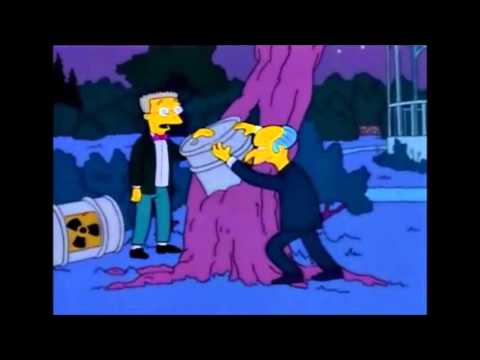
If you can validate against some bad scenario and avoid throwing an exception- do so. Try statement is not expensive performance-wise, but you should not base your logic on error. Keep exceptions to exceptional situations and not general business logic.
Debugging is an act of inspecting an ongoing program state as you go through it line-by-line.
Debugging by itself will just run a program. If you want it to pause, you will need to place a breakpoint- when debugging it tells the program to stop at that line. You can place one by clicking at the left edge of the code editor. That will make a red dot appear next to a line number.

We have a breakpoint- that means we can test how debugging works! Either hit F5 or the run application button (as long as debug mode is selected):

Your IDE window will change slightly. On the right side, you will see a "Diagnostic Tools" window. Pay no attention to it for now- it is outside the scope of this lesson. However what you should focus on is the bottom part.
What do we see at the bottom part? We see 3 essential tabs that appear only in debug mode: Autos, Locals and Watch.
Autos Window - shows variables around the breakpoint. Consider the code below:
{
    // ...
    var other = "";
    var ingredients = "something";
    var standardised = StandardiseRecipe(ingredients);
    Console.WriteLine(standardised);
}
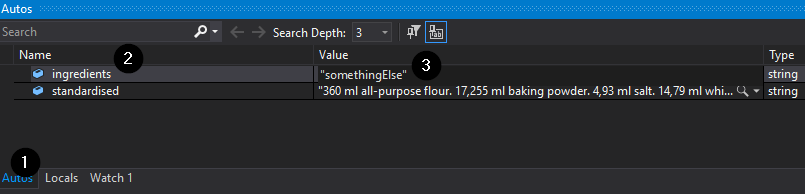
Is a breakpoint is placed at Console.WriteLine part, then autos will show 2 variables: standardised and ingredients. It will show the variable name, value and type. It will not show other, because it is not next to the breakpoint (it's 2 lines of code apart).
It's worth mentioning that you can actually change the value of a variable in autos by simply double clicking on it:
Locals window- shows what the name suggests- local variables of a function.

Again, you can do the same thing- like changing the variable values as the program is paused (under a breakpoint).
Watch window- the most powerful window of the 3- it allows you to choose what you want to inspect. You will start with an empty watch, but you can add more variables as you go.
But wait, there is more! You can even write custom expressions to evaluate code for you and keep it in the watch.

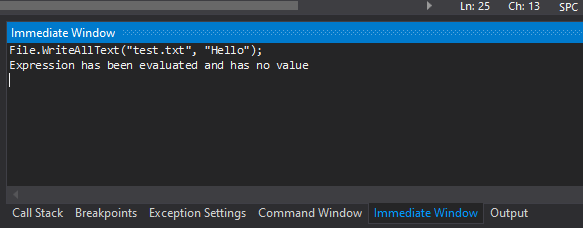
Lastly there is one more window- Intermediate Window. It allows you to execute any code against a paused application, without the need of restarting it or writing that code temporarily, executing, then deleting. Intermediate window is often replaced by just a watch, but it makes sense to use it over a watch when you just want to execute code rather than getting some value.
Here you can see how we wrote "Hello" to a new file. Instead of a "Hello" we can pick any local variable and it would work the same way.
Now that we know how to inspect and modify the state of a running program, it's time to learn how to navigate through running code.
Pressing F5 (or hitting the play/continue button) will move your code to the next breakpoint.
Pressing F10 or Step Over button, will move to the next line of code at the same function.
Pressing F11 or Step Into button, will either move to the next line of code at the same function or, if it calls any other function, goes inside the the first line of that function.
Pressing Shift+F11 or Step Out will move to the next line of code, but outside of the function currently being executed.
Almost like going back in time, you can go back to the previous executed line of code. You will not revert the state, but you will be able to execute the code once again, from before. All you have to do is to hold the cursor at the current line of code under execution and then drag it over the next line you want it to execute.
You could use it to jump over a few lines of code or go back.


All of those buttons can be seen here:

- continue
- step into
- step over
- step out
When you start adding multiple functions to your program, it might be difficult to navigate where your running code is at. However, it's not as big as an issue as you think- we always keep track of a Call Stack. It is a constantly updated history log, which tells what it took to reach the current line where you are. Specifically, which functions led to the place you are at.
For example, we have a program like this:

A breakpoint is put on Console.WriteLine("Bar");. If we run the program, in the Call Stack window we will see the following:

In this case, we can see the story of our application. To get to where we are, we went to:
- Line 20- inside
Main - Line 26- inside
FooBar - Line 36- inside
Bar
These reads are optional for beginners, but if you are planning to go deep into programming, it's recommended that you go through it at least once.
When you start to become more familiar with files, text specifically, you will notice that some characters will not be saved properly in files. That's because some characters require a specific encoding. You can read more about it here:
Encoding lesson from boot camp v1:
Binary is unlikely to be used as-is when you program in C#. But it is quite fundamental knowledge that will supplement your understanding of programming.
What Is Binary - Computerphille
Byte is a fundamental unit of data. This is more a genesis story, rather than a necessity for you to use it. Great to supplement your understanding.
You have a file called Users.txt. It contains usernames and passwords.
A user opens your application and they have 3 options:
- Login- enter their username and password, which should match any one line in
Users.txt. Successful login will result in "Hello!" printed. - Register- enter their username and password, which should append their credentials at the end of the file. In case of a duplicate user- try again.
- Exit- close the application
Users.txt file should be at the same directory as the application start .exe.
- If there is no
Users.txtfile- the application should throw "UsersNotFoundException. - If a
Users.textfile contains duplicate users, throw aDuplicateUserCredentialsException.
- Don't use
Fileclass static methods.
- What is an exception?
- How to create custom exceptions?
- What is the difference between a file,
Streamandbyte[]? - What is a file?
- What specifics should a string, which stores file path variable have?
- How to read/write to a file in the most simple way possible?
- What are unmanaged resources?
- What to do with unmanaged resources after we no longer need them?
- What is a stacktrace?
- What is a call stack?
- What is an intermediate window?
- What is the difference between autos, locals and watch windows?
- Is it possible to go to a previous line when debugging?
- Why do we need debugging?