A web-based massCode database viewer that allows you to access your code snippets anywhere, anytime.
massCode is an excellent open-source code snippet management tool that provides powerful code organization and search capabilities, supports syntax highlighting for multiple programming languages, and features a clean and elegant user interface. It greatly improves developers' efficiency in managing code snippets.
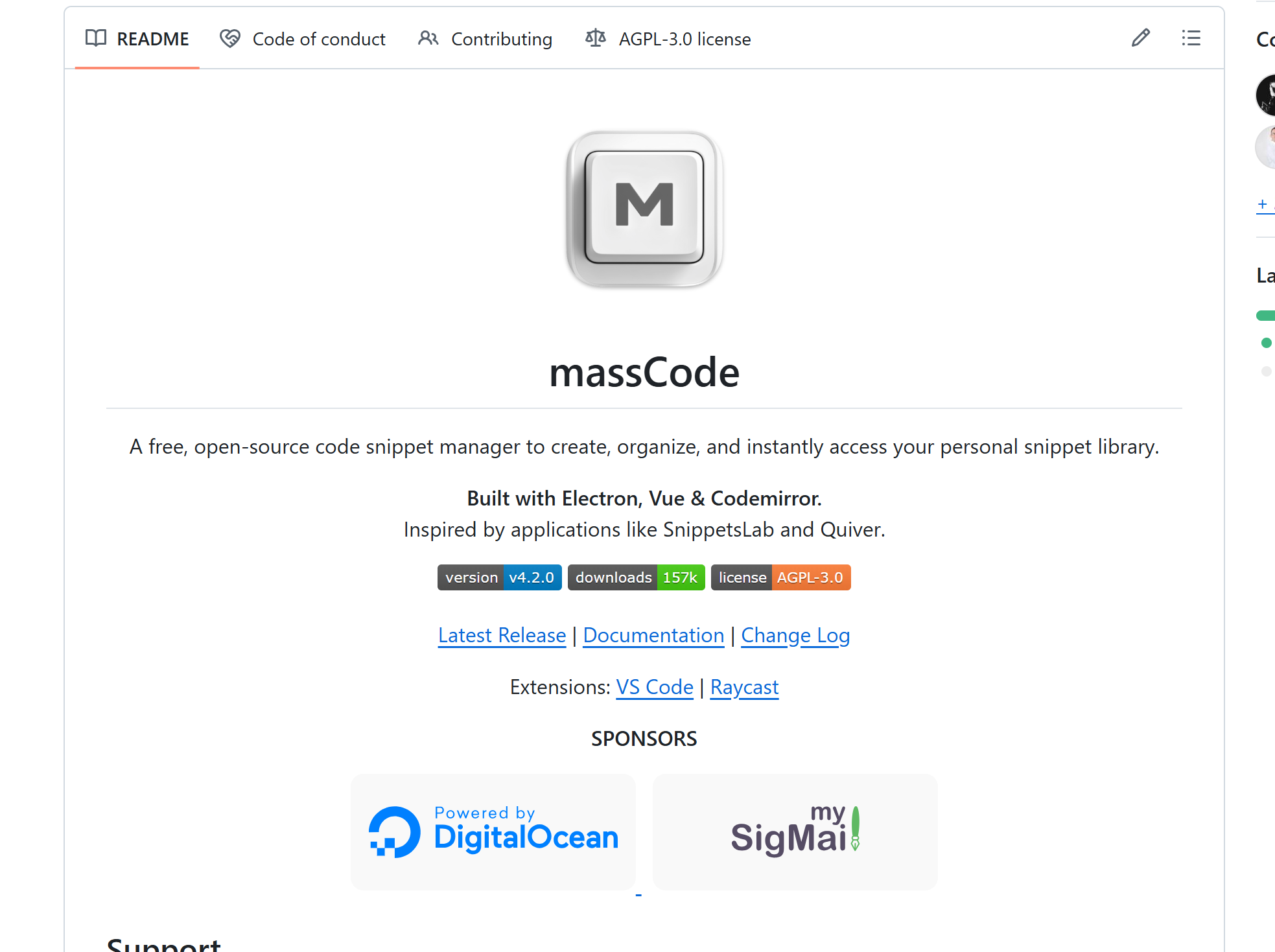
However, as a desktop application, massCode has an obvious limitation: you cannot access your code snippets anywhere, anytime. When switching between different devices or when you need to view a code snippet temporarily, it's often impossible to access them in time.
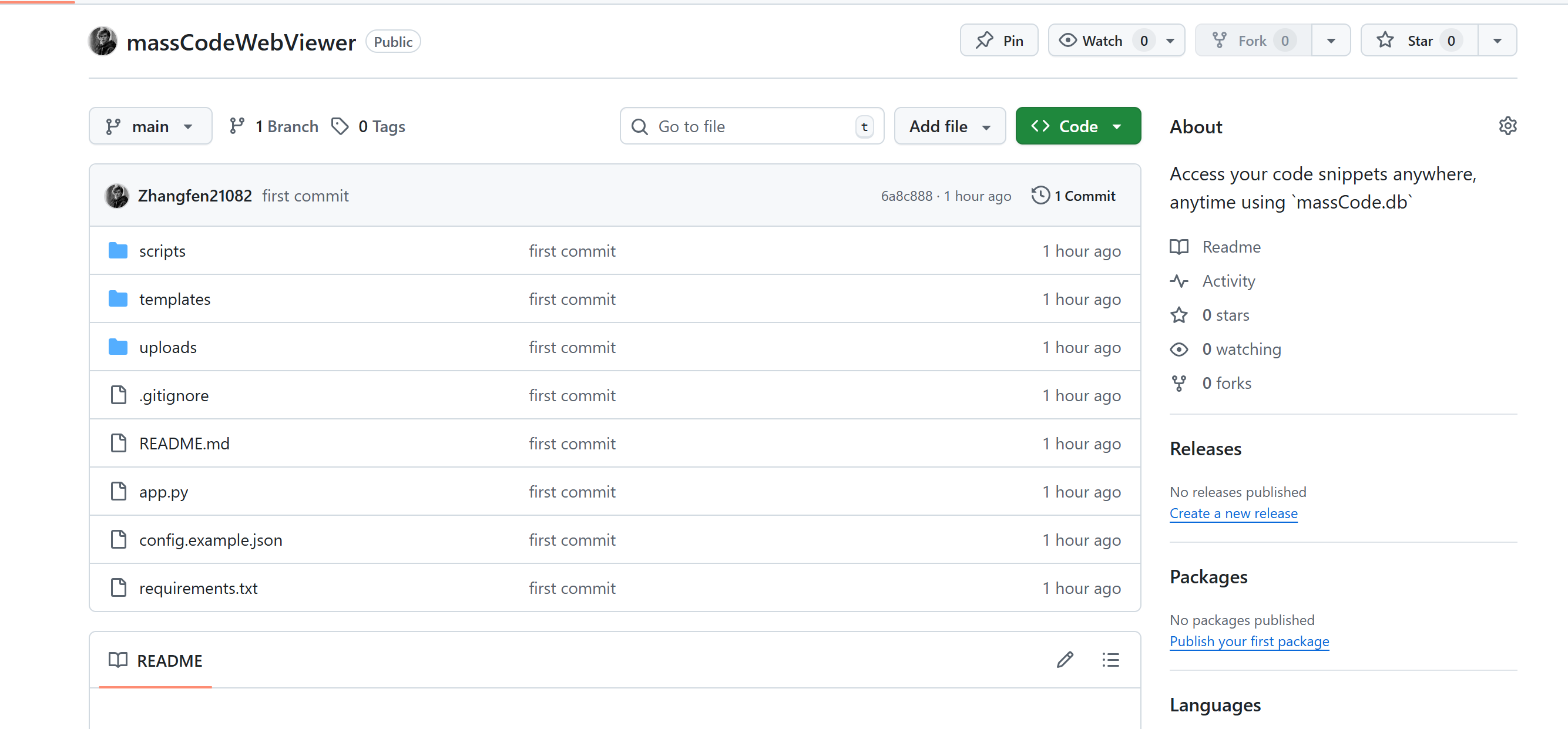
To solve this problem, I developed massCode Web Viewer. With just the massCode database file massCode.db, you can access your code snippet library from anywhere with internet access using a browser.
Project Repository: Zhangfen21082/massCodeWebViewer
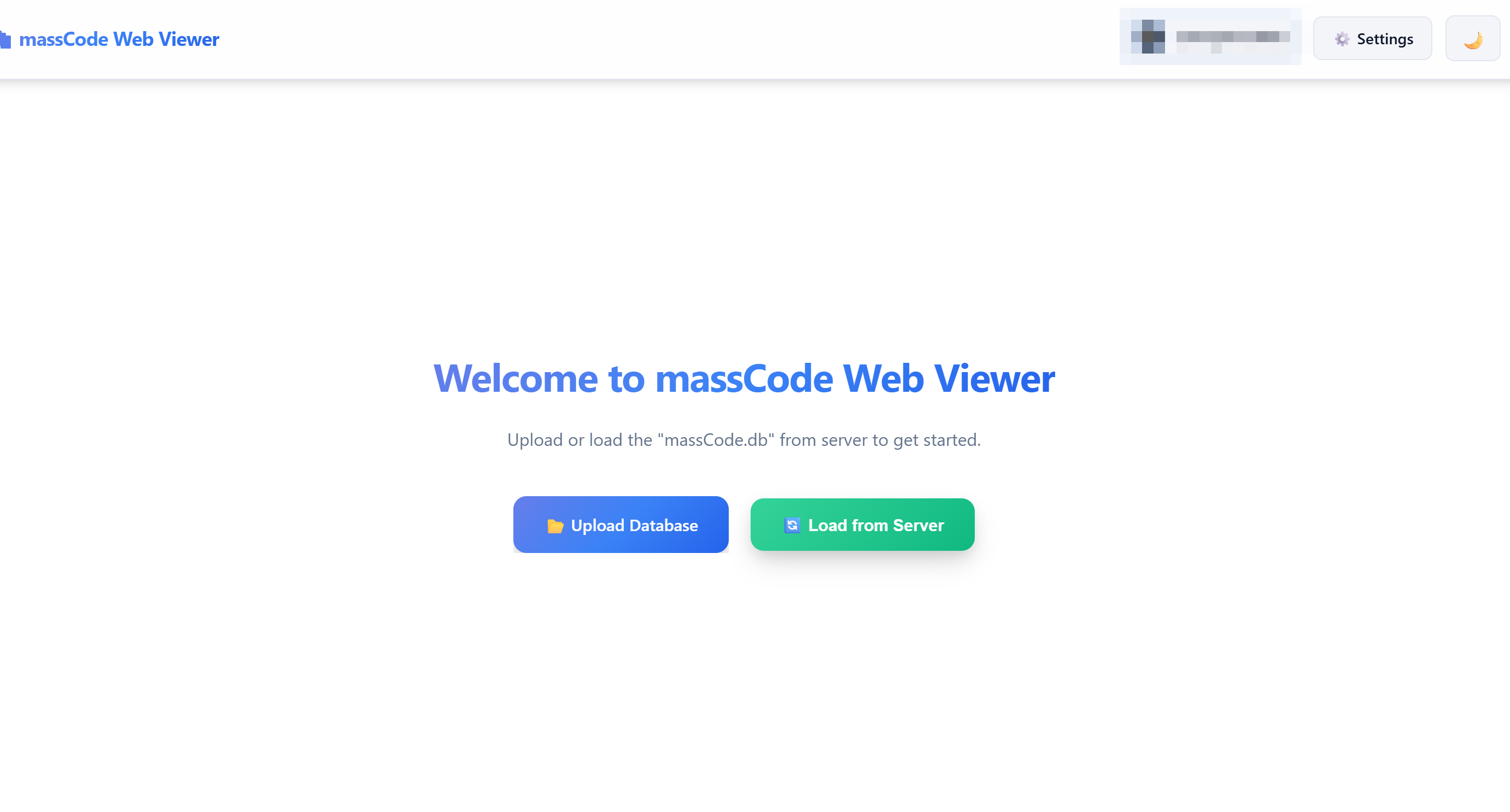
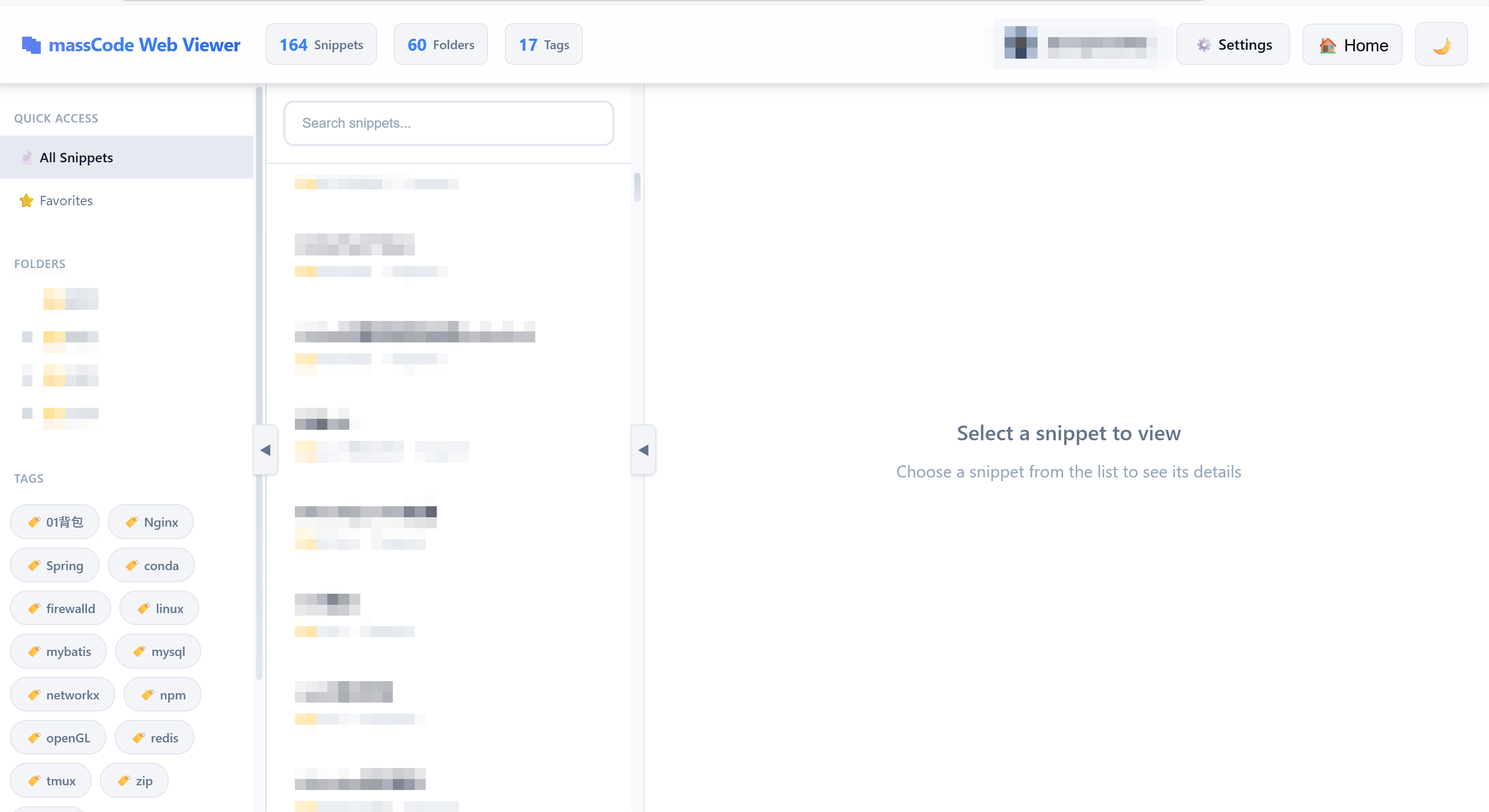
- Full support for massCode database format, browse and search all code snippets
- GitHub OAuth authentication to protect your code snippets
- API Token mechanism for secure database file uploads
- Automatic database backup to prevent data loss
- Dark/Light theme switching for different usage scenarios
- Responsive design, supports desktop and mobile devices
- Code syntax highlighting, consistent with massCode's reading experience
git clone https://github.com/Zhangfen21082/massCodeWebViewer.git
cd massCodeWebViewerpip install -r requirements.txtOption 1: Using Configuration File
cp config.example.json config.json
# Edit config.json with your configuration
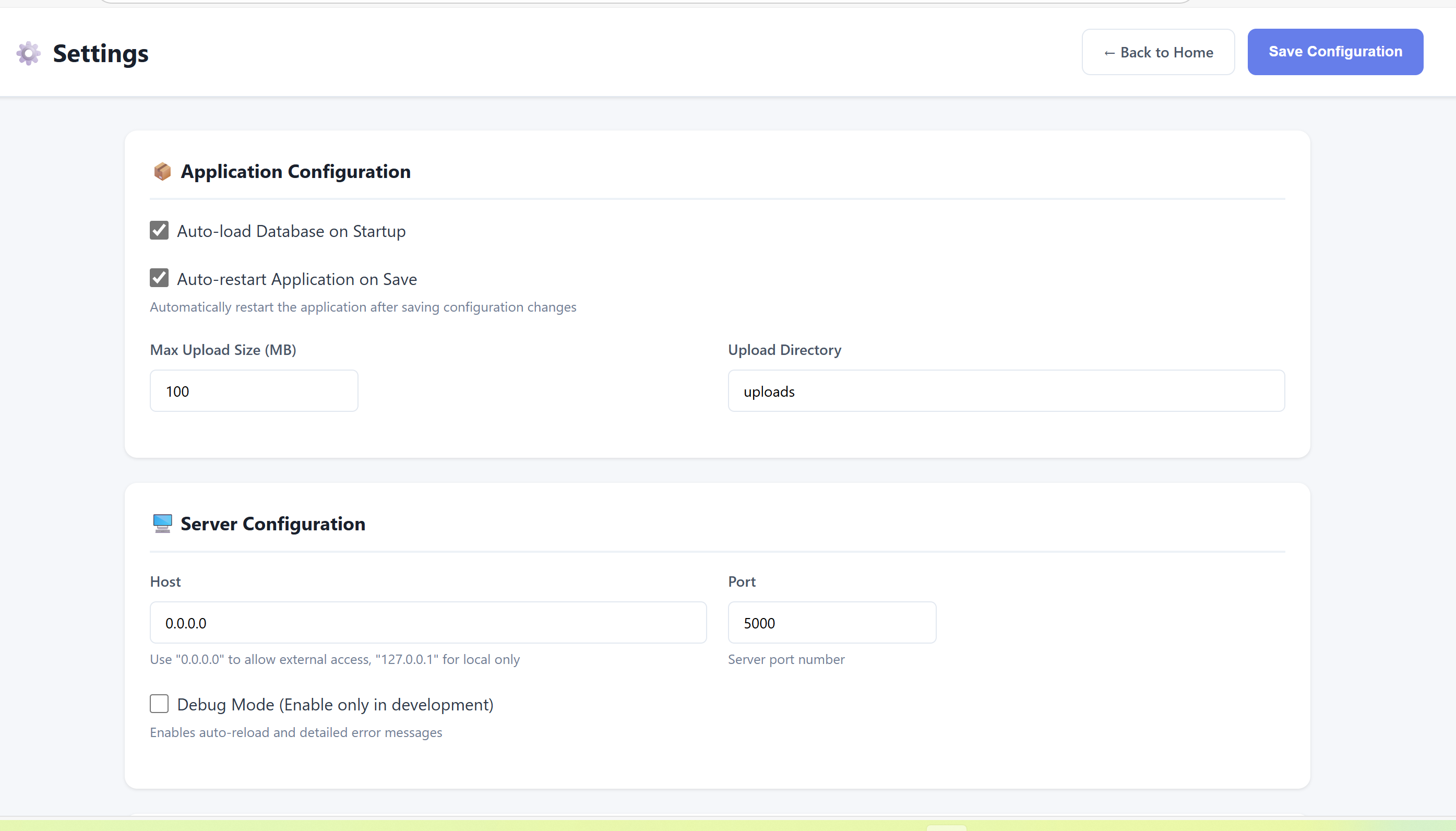
Option 2: Using Web Configuration Interface (http://ip:5000/settings)
After running the application, access the configuration page and complete the setup through the visual interface. The application will automatically restart after saving the configuration.
python app.pyThe application runs on http://localhost:5000 by default
- host: Server binding address, 0.0.0.0 means listening on all network interfaces
- port: Server port number, default is 5000
- debug: Debug mode, set to false in production environments
- enabled: Enable/disable security authentication
- authType: Authentication method, currently supports github
- secretKey: Session encryption key, at least 32 characters
- sessionLifetime: Session validity period in seconds, default 86400 (24 hours)
- Visit https://github.com/settings/developers to create an OAuth App
- Fill in the following information:
- Application name: Custom name
- Homepage URL: Your server address
- Authorization callback URL: http://your-domain.com:5000/auth/callback
- Get Client ID and Client Secret and fill them into the configuration file
- Add allowed GitHub usernames to the allowedUsers list
Generate API Tokens in the settings page of the web interface for automated script uploads of database files.
- autoLoadDatabase: Automatically load database on startup
- autoRestartOnSave: Automatically restart application after saving configuration
- maxUploadSizeMB: Maximum upload file size (MB)
- uploadDirectory: Upload file storage directory
- enabled: Enable/disable automatic backup
- autoBackupOnUpload: Automatically backup when uploading new database
- maxBackups: Maximum number of backups to keep
- backupDirectory: Backup file storage directory
Upload the massCode.db file directly on the upload page of the web interface.
The project provides cross-platform automated synchronization scripts located in the scripts directory:
- sync-to-cloud.bat - Windows batch script
- sync-to-cloud(silent task run and compare).bat - Windows silent script (with file comparison)
- sync-to-cloud.ps1 - Windows PowerShell script
- sync-to-cloud.sh - Linux/macOS Shell script
- Configure the sync script
cd scripts
copy sync-config.example.json sync-config.json- Edit sync-config.json file
{
  "serverUrl": "http://your-server-domain.com:5000",
  "apiToken": "your-api-token-here",
  "dbPath": "C:/Users/YourUsername/AppData/Roaming/massCode/storage/massCode.db"
}
Configuration details:
- serverUrl: Your server address and port
- apiToken: API Token generated in the web interface settings page
- dbPath: massCode database file path
- Windows default path: C:/Users/YourUsername/AppData/Roaming/massCode/storage/massCode.db
- If the script doesn't find the configuration, it will use the default path %APPDATA%\massCode\storage\massCode.db
- Execute the sync script
Normal Mode (Interactive):
Double-click to run sync-to-cloud.bat or execute in command line:
cd scripts
sync-to-cloud.bat
Silent Mode (Suitable for scheduled tasks):
Double-click to run sync-to-cloud(silent task run and compare).bat or execute in command line:
cd scripts
"sync-to-cloud(silent task run and compare).bat"
Silent mode automatically compares local and server database files and only uploads when there are differences.
The script will display the following information:
- Database file path and size
- Server address
- Upload progress and results
- Configure the sync script
cd scripts
cp sync-config.example.json sync-config.json
chmod +x sync-to-cloud.sh- Edit sync-config.json
{
  "serverUrl": "http://your-server-domain.com:5000",
  "apiToken": "your-api-token-here",
  "dbPath": "/path/to/your/massCode.db"
}- Execute sync
./sync-to-cloud.sh- Set up cron scheduled task (Optional)
crontab -eAdd the following line (execute daily at 9:00 AM):
0 9 * * * cd /path/to/massCodeWebViewer/scripts && ./sync-to-cloud.sh >> /tmp/masscode-sync.log 2>&1Use Windows Task Scheduler to create scheduled tasks for automatic synchronization:
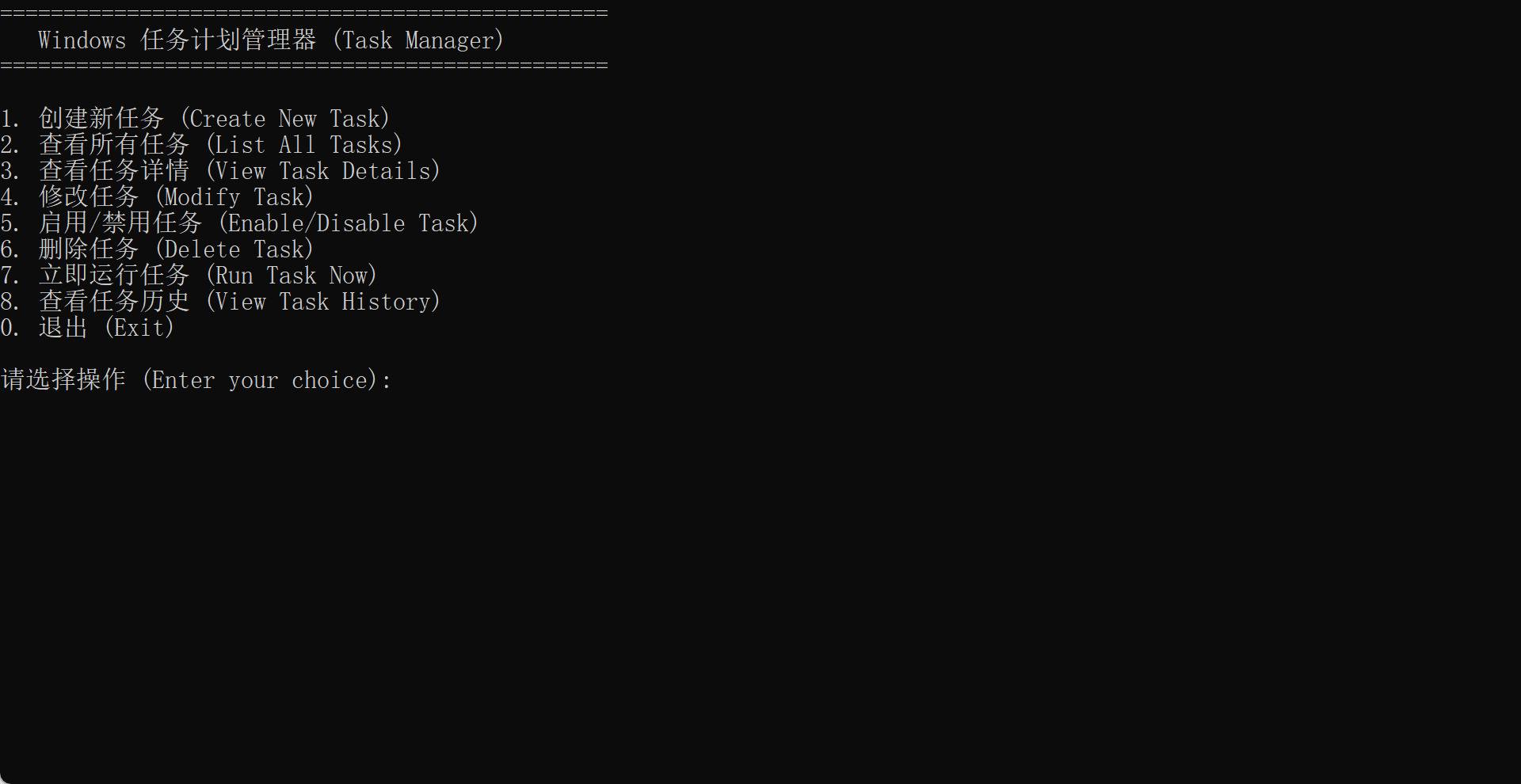
Method 1: Using Interactive Script (Recommended)
- Navigate to the scripts directory
- Double-click to run
task.bat - Follow the prompts to enter task name, execution time, and other information
- The script will automatically create the scheduled task
Method 2: Manual Creation via GUI
- Open "Task Scheduler" (Win + R, type taskschd.msc)
- Click "Create Basic Task" on the right side
- Name: massCode Auto Sync
- Trigger: Daily (or according to your needs)
- Action: Start a program
- Program/script:
C:\Path\To\massCodeWebViewer\scripts\sync-to-cloud(silent task run and compare).bat - Start in:
C:\Path\To\massCodeWebViewer\scripts
- Program/script:
- Complete creation
Method 3: Using Command Line
cd scripts
schtasks /create /tn "massCode Auto Sync" /tr "%CD%\sync-to-cloud(silent task run and compare).bat" /sc daily /st 09:00
This will create a scheduled task that executes daily at 9:00 AM.
python app.pypip install gunicorn
gunicorn -w 4 -b 0.0.0.0:5000 app:app# Dockerfile
FROM python:3.9-slim
WORKDIR /app
COPY requirements.txt .
RUN pip install -r requirements.txt
COPY . .
EXPOSE 5000
CMD ["python", "app.py"]Build and run:
docker build -t masscode-viewer .
docker run -d -p 5000:5000 -v $(pwd)/config.json:/app/config.json masscode-viewerserver {
listen 80;
server_name your-domain.com;
location / {
proxy_pass http://127.0.0.1:5000;
proxy_set_header Host $host;
proxy_set_header X-Real-IP $remote_addr;
proxy_set_header X-Forwarded-For $proxy_add_x_forwarded_for;
}
}massCodeWebViewer/
├── app.py # Flask application main file
├── config.json # Configuration file
├── requirements.txt # Python dependencies
├── static/ # Static resources
│ ├── css/
│ └── js/
├── templates/ # HTML templates
├── scripts/ # Automation scripts
│ ├── sync-to-cloud.bat # Windows batch script
│ ├── sync-to-cloud(silent task run and compare).bat # Windows silent script
│ ├── sync-to-cloud.ps1 # PowerShell script
│ ├── sync-to-cloud.sh # Linux/macOS Shell script
│ ├── task.bat # Windows scheduled task creation script
│ └── sync-config.example.json # Configuration file example
└── uploads/ # Upload file directory
# Create virtual environment
python -m venv venv

# Activate virtual environment
# Windows
venv\Scripts\activate
# Linux/macOS
source venv/bin/activate

# Install development dependencies
pip install -r requirements.txt

# Enable debug mode
# Set "debug": true in config.json
python app.py- GET /api/snippets - Get all code snippets
- POST /api/upload - Upload database file
- GET /api/search?q=keyword - Search code snippets
- GET /api/folders - Get folder list
Issues and Pull Requests are welcome. Before submitting a PR, please ensure:
- Code follows PEP 8 standards
- Add necessary comments and documentation
- Test that new features work correctly
- Update relevant documentation
- Python 3.7+
- Flask 3.0.0+
- Modern browsers (Chrome, Firefox, Safari, Edge)
See requirements.txt for complete dependency list
This project is licensed under the MIT License.
This project is not affiliated with massCode. It is an independently developed web viewer for massCode databases. When using this project, please comply with massCode's relevant agreements and regulations.
If you encounter problems during use or have suggestions for improvement, feel free to:
- Submit an Issue: https://github.com/Zhangfen21082/massCodeWebViewer/issues
- Project Homepage: https://github.com/Zhangfen21082/massCodeWebViewer